
Lead Capture Mode Settings (Passive, Active or Forced)
Your RealtyNinja website (or MLS®/IDX widget) lets you decide how and when to prompt visitors to register for a free account while browsing MLS® searches and MLS® listings.
These settings control the level of friction between casual browsers and more serious buyers - helping you strike the right balance between lead quantity and quality.
Watch the tutorial video below to learn more, or scroll down for step-by-step written instructions.
What Lead Capture Mode Does
Prospective buyers often spend time browsing MLS® listings and performing MLS® searches on your site. Lead Capture Modes determine how proactively they’re prompted to register or log in to continue.
There are three modes to choose from - each with its own advantages and trade-offs.
Note: These settings only affect MLS® Search and MLS® Listing pages on your website. Your own active listings will always remain freely viewable. We believe you shouldn’t limit access to your own listings.
Turn On User Account Functionality (if it's off)
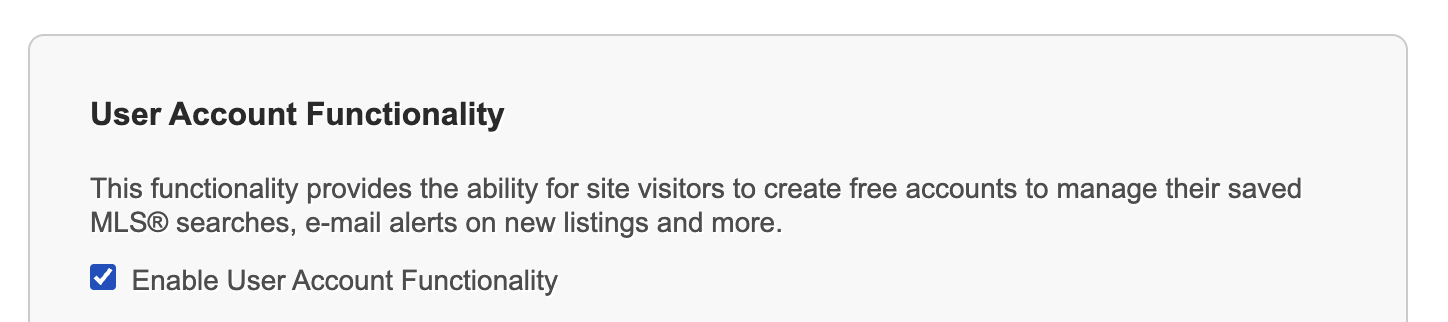
Before you can view Lead Capture Mode settings you first need to make sure User Account Functionality is enabled on your website. You can find that under "SETTINGS > General > User Account Functionality" in the backend of your website.
Why Encourage Visitors to Register?
When visitors create a free account, they can:
- Save MLS® searches
- Receive instant email alerts on new listings
- Access more listings for sale (VOW only)
- View additional listing details (VOW only)
- Search sold listings (VOW only)
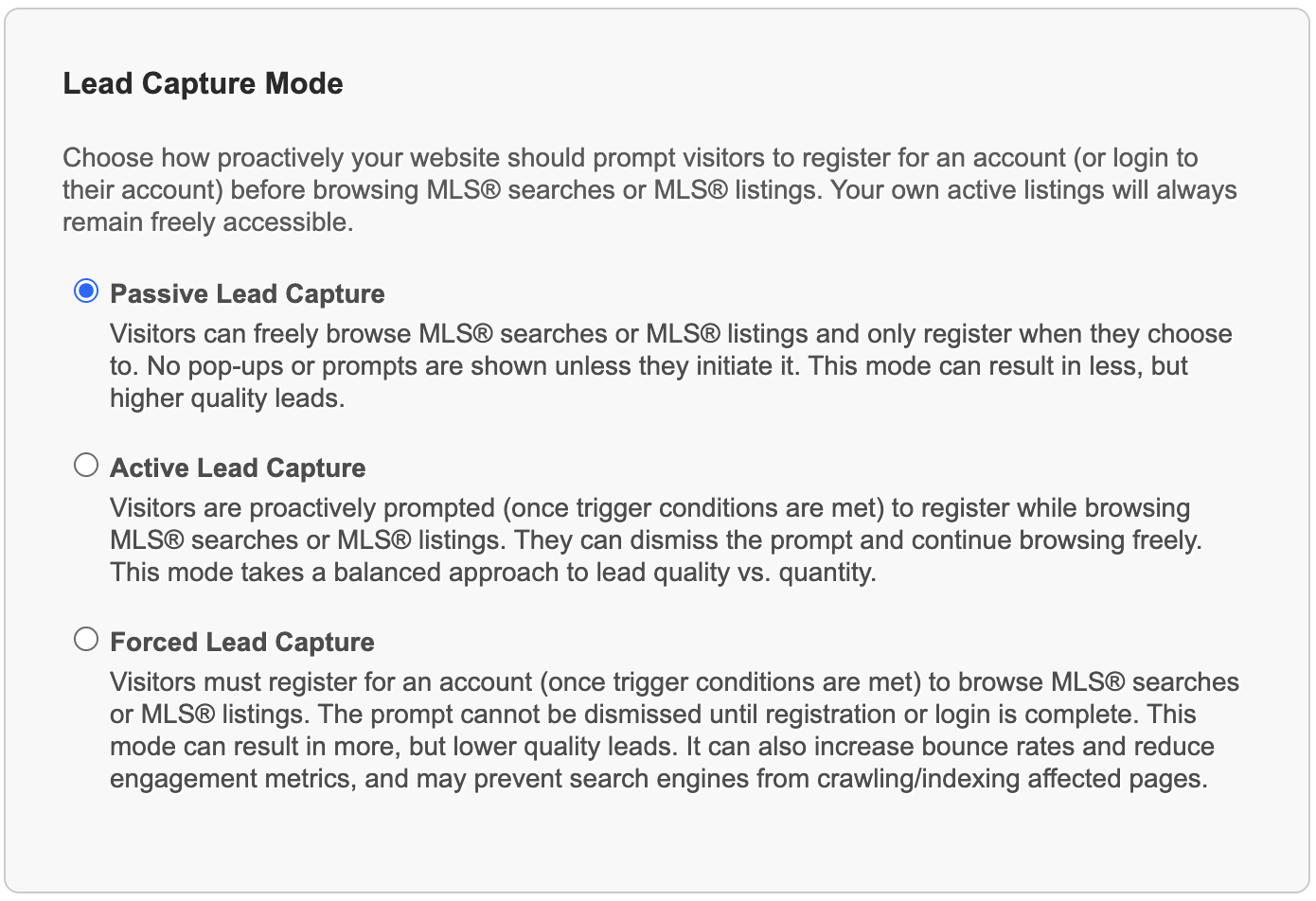
Passive Lead Capture Mode
Overview:
Visitors can freely browse MLS® searches and MLS® listings and only register when they choose to. No pop-ups or prompts are shown unless they initiate registration (for example, when saving a search).
Example:
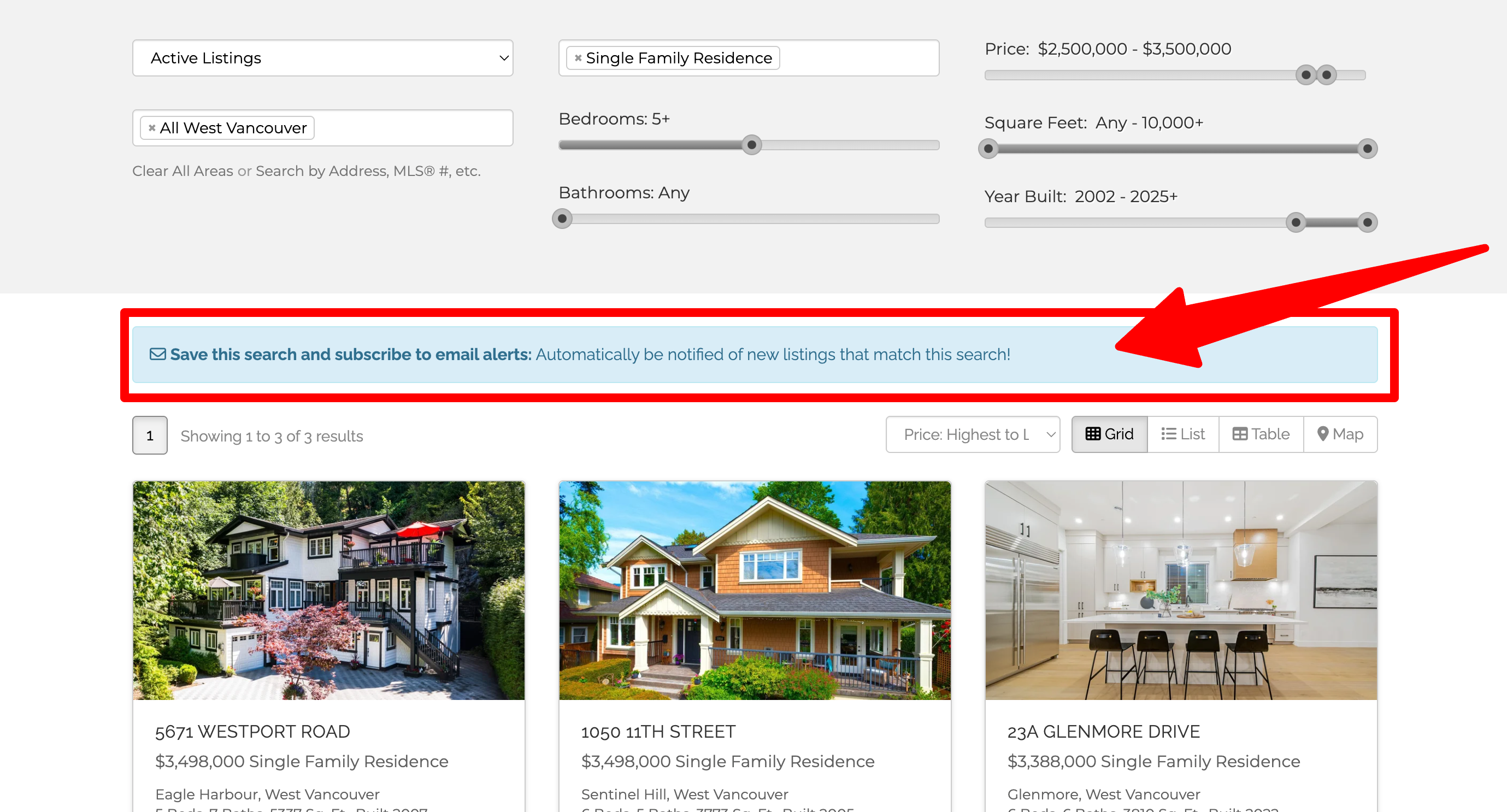
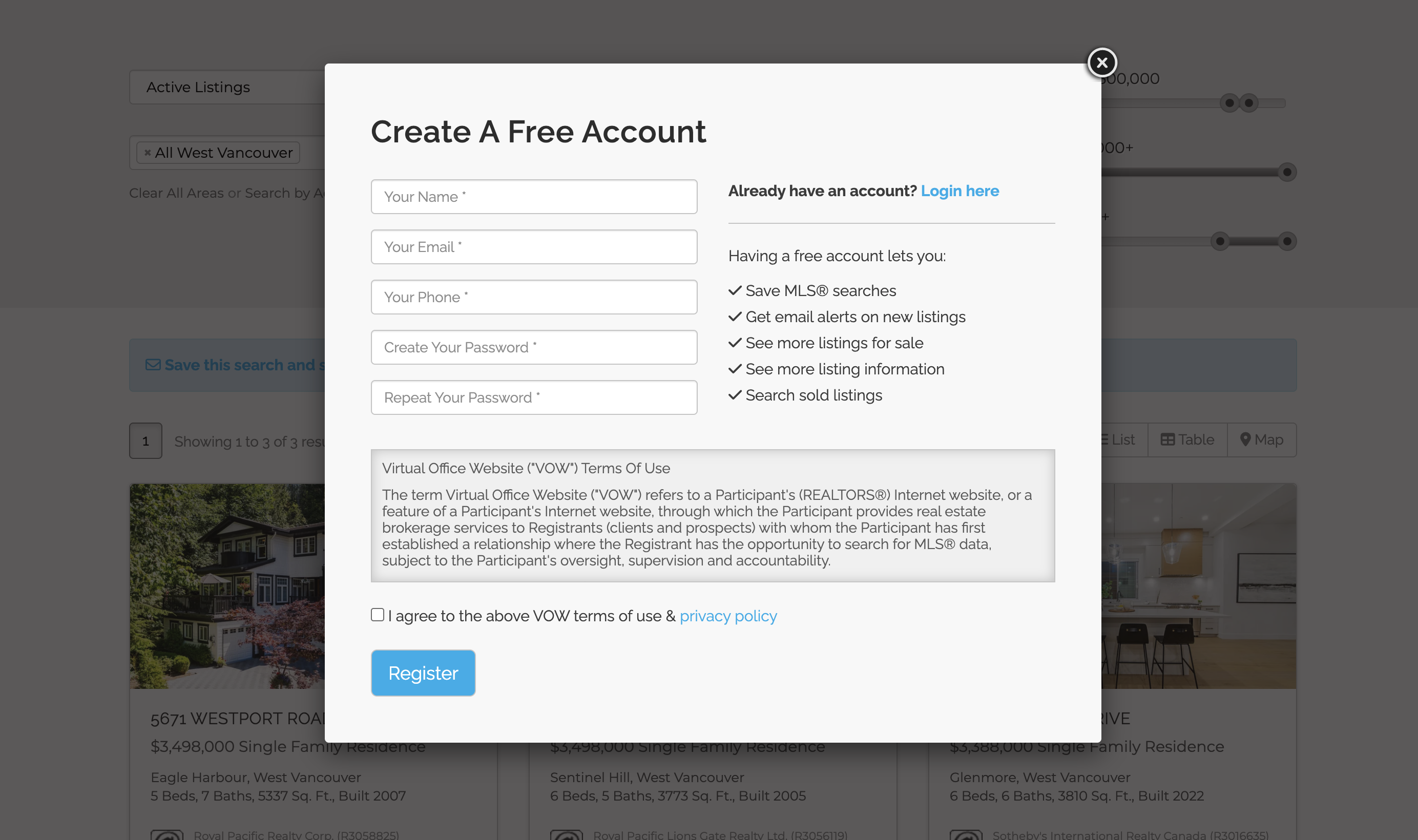
A visitor clicks “Save this search and subscribe to email alerts.” The registration lightbox then appears.
Best for:
Agents who want to maintain a friction-free browsing experience and capture only high-intent, high-quality leads.
Active Lead Capture Mode
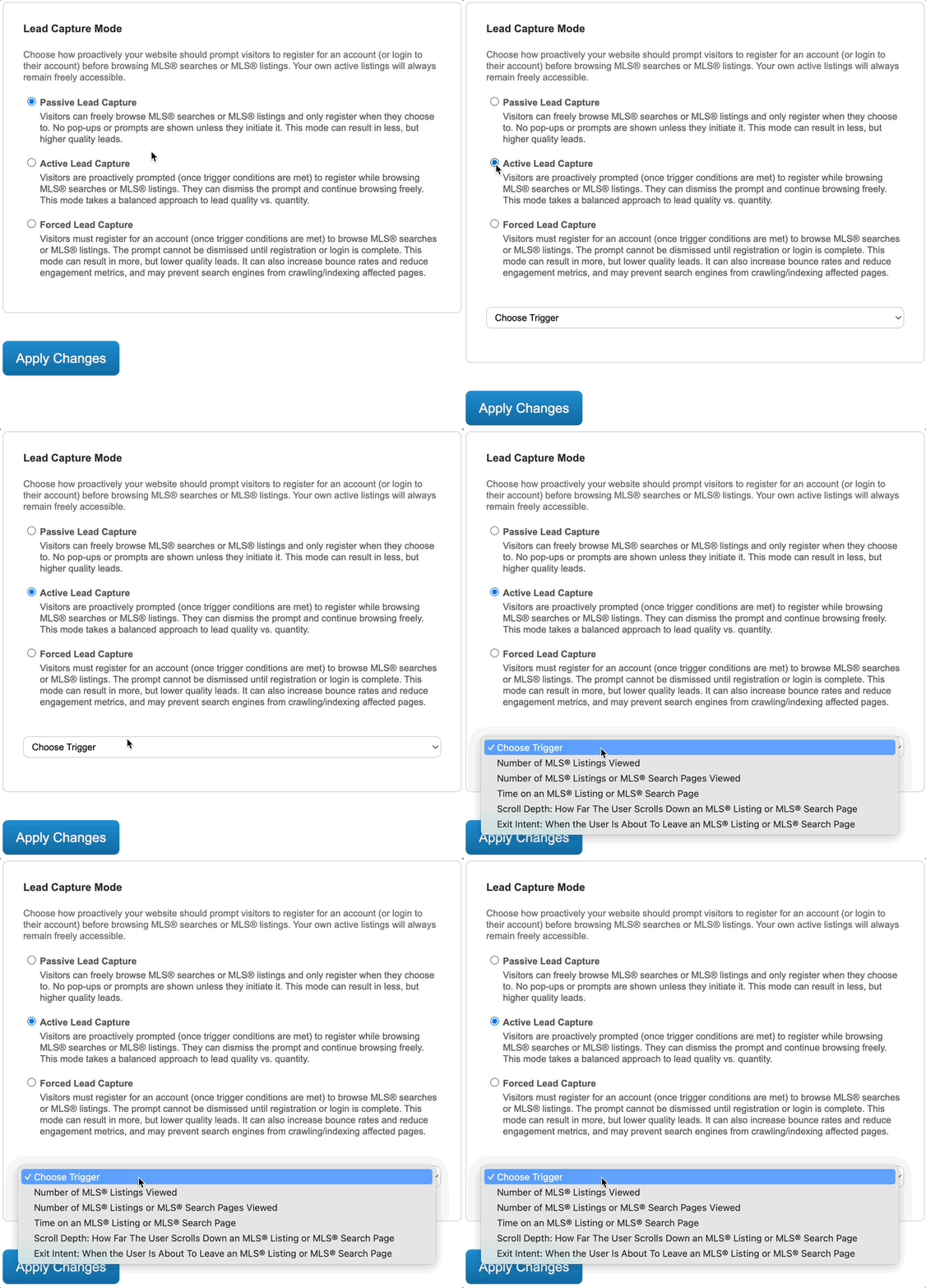
Overview:
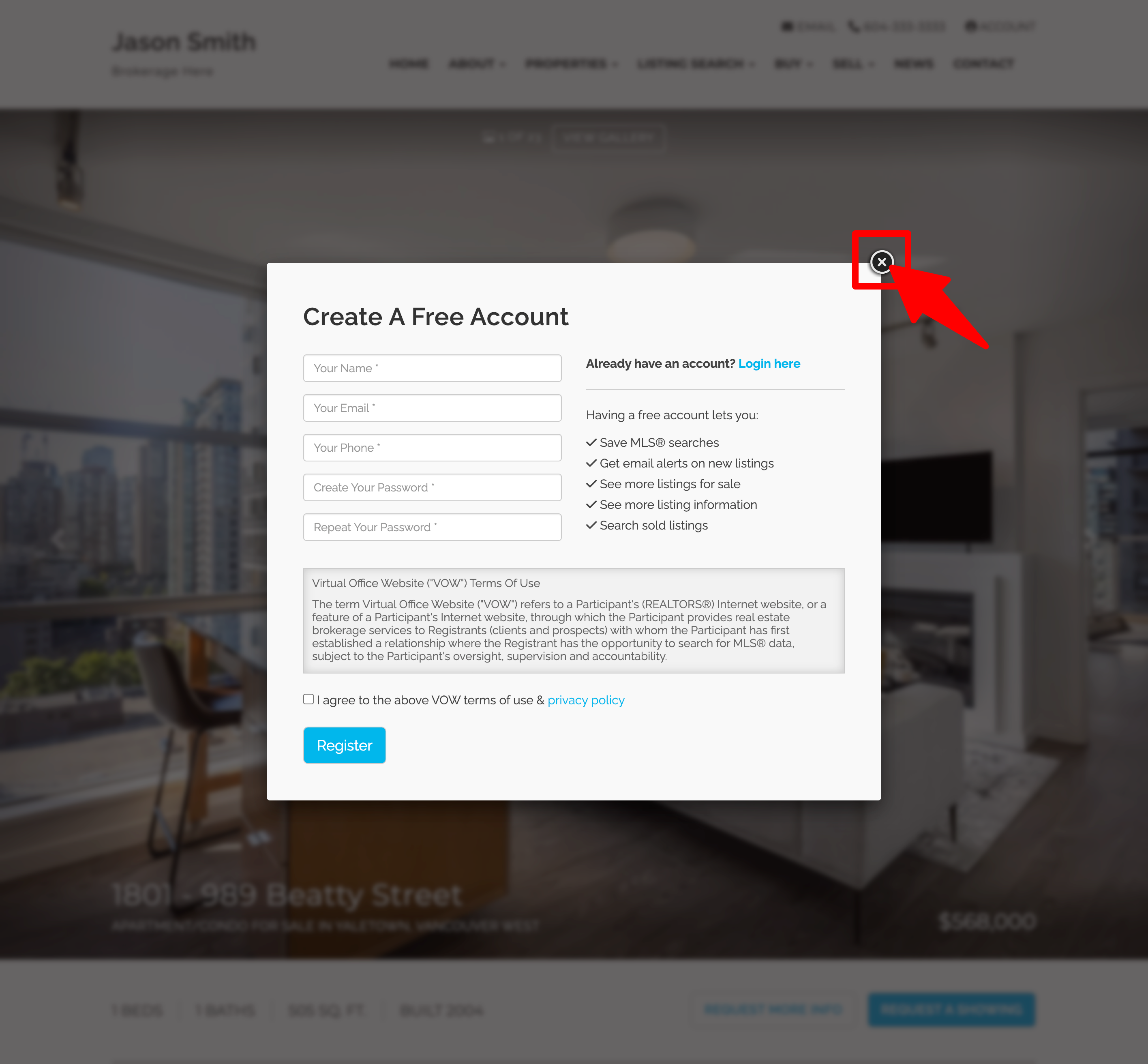
Visitors are prompted to register once specific conditions (triggers) are met while browsing MLS® listings or MLS® search pages. They can dismiss the prompt and continue browsing freely.
Example:
If you set the trigger “Number of MLS® Listings Viewed” = 5 , the registration lightbox appears when a visitor tries to view the 6th listing. The page content behind the lightbox is blurred. They can either register/log in or close the lightbox to continue browsing.
Available triggers:
- Number of MLS® Listings Viewed
- Number of MLS® Listings or MLS® Search Pages Viewed
- Time on an MLS® Listing or MLS® Search Page
- Scroll Depth: How Far The User Scrolls Down an MLS® Listing or MLS® Search Page
- Exit Intent: When the User Is About To Leave an MLS® Listing or MLS® Search Page
Notes:
- Trigger conditions reset every 24 hours.
- "Number of" triggers are counting individual pages. Not the number of times the same page is viewed.
- Exit intent only works on desktop (not mobile) because this setting relies on tracing mouse-movement.
Best for:
Agents seeking a balanced approach - encouraging engagement without being too aggressive.
Forced Lead Capture Mode
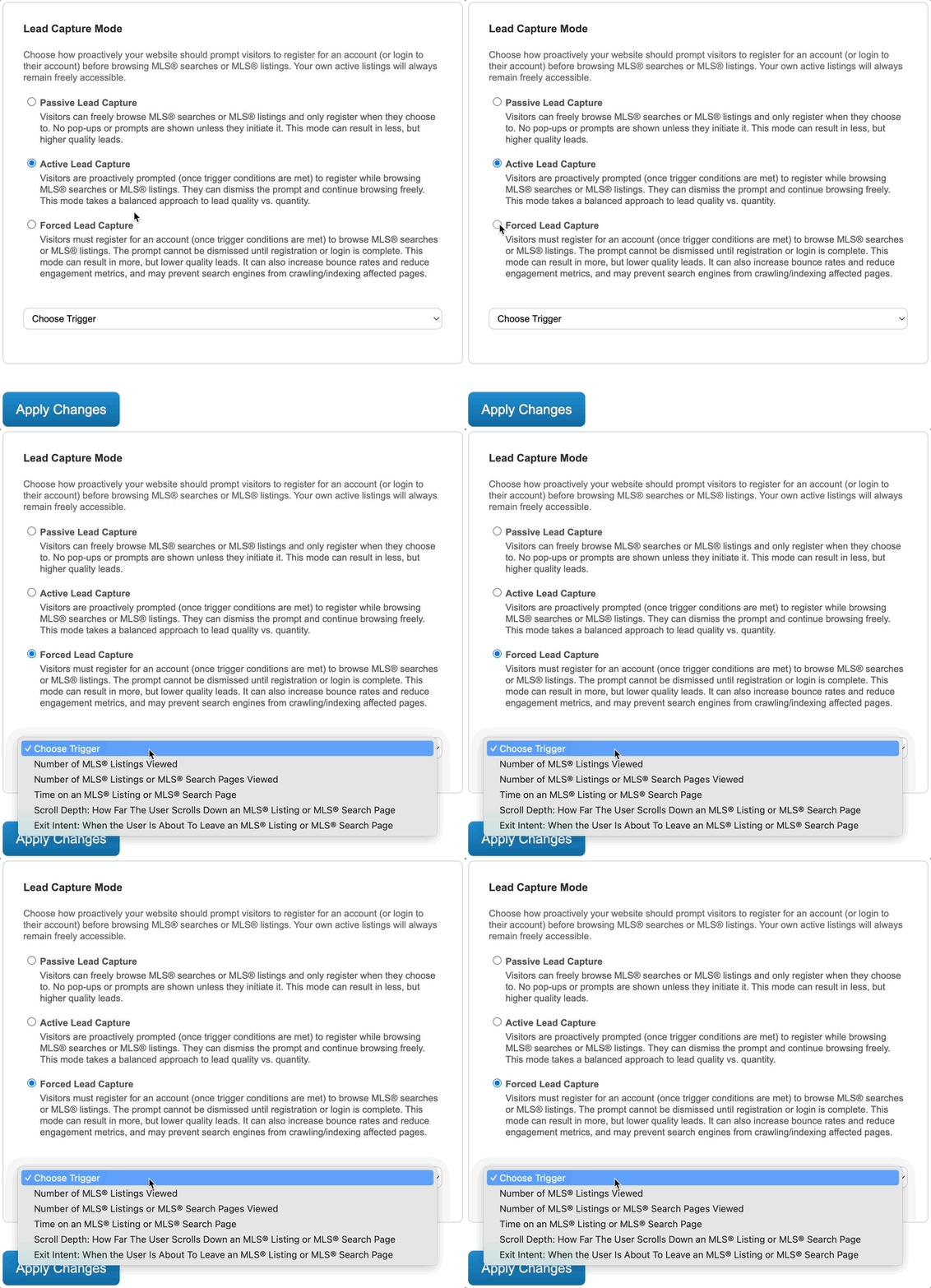
Overview:
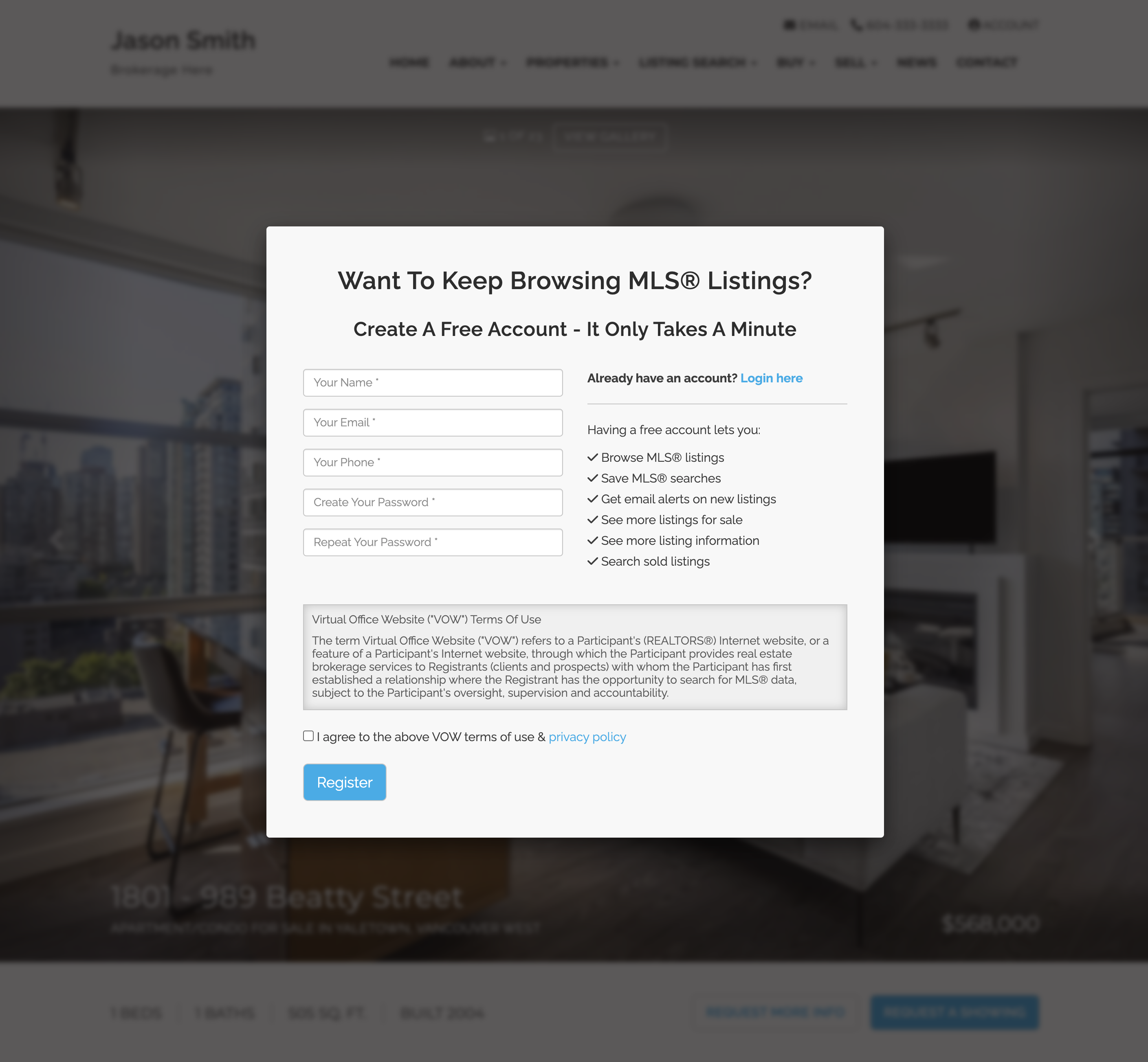
Visitors must register or log in once trigger conditions are met. The prompt cannot be closed until registration or login is complete.
Example:
Using the same trigger (“Number of MLS® Listings Viewed” = 5 ), the registration lightbox appears when a visitor tries to open the 6th listing. The content behind it is blurred and cannot be accessed until registration is completed.
Available triggers (Same as Active Mode):
- Number of MLS® Listings Viewed
- Number of MLS® Listings or MLS® Search Pages Viewed
- Time on an MLS® Listing or MLS® Search Page
- Scroll Depth: How Far The User Scrolls Down an MLS® Listing or MLS® Search Page
- Exit Intent: When the User Is About To Leave an MLS® Listing or MLS® Search Page
Important considerations:
- Can increase bounce rates (users leaving the page immediately).
- May reduce engagement time and prevent search engines from indexing affected pages.
Best for:
Agents running short-term ad campaigns or promotions who want to maximize lead volume and are comfortable trading off some engagement.
How to Change These Settings
- Log in to your website’s backend (yourwebsite.com/login )
- Click Settings
- Click Leads
- Scroll to the Lead Capture Mode section
- Select your preferred mode and trigger conditions
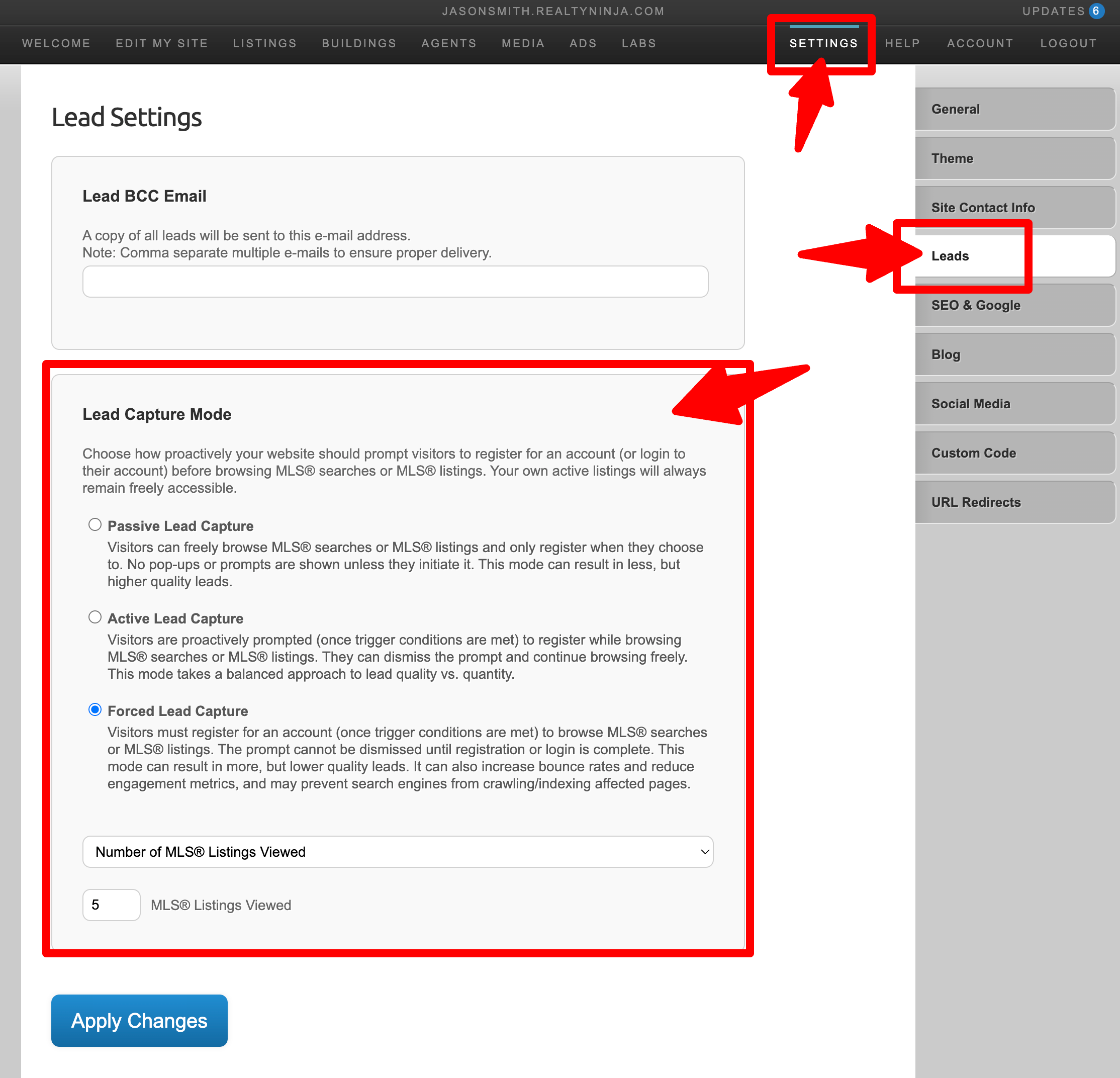
Note: You will need to logout of the backend of your account in order to test these settings on your website.
Which Mode Should You Choose?
| Goal | Recommended Mode | Description |
|---|---|---|
| Maximize lead quantity | Forced | Ideal for ad campaigns or high-traffic lead funnels. Potentially higher lead quantity but also higher bounce rates. |
| Maximize lead quality | Passive | Best for attracting serious, high-intent buyers who engage on their own. |
| Find a healthy balance | Active | Great everyday choice - prompts users after some engagement without blocking access entirely. |
Questions?
Contact our support team - we’re happy to help.